
The Security Assessment Skill for OpenClaw
Trent AI’s security assessment skill audits your OpenClaw environment for risks most users never see: secrets in plaintext, overly permissive access policies, unsafe gateway exposure, and tool permissions that give agents far more power than intended.
The Security Assessment Skill for OpenClaw
Trent AI’s security assessment skill audits your OpenClaw environment for risks most users never see: secrets in plaintext, overly permissive access policies, unsafe gateway exposure, and tool permissions that give agents far more power than intended.
What it finds
Trent’s security assessment analyzes your OpenClaw configuration and installed skills across three phases, surfacing risks that are invisible during normal agent operation.

Finds secrets stored in plaintext across your OpenClaw configuration, environment variables, and skill settings.

Detects overly permissive access policies, workspace directories with write access that could enable malicious skill injection, and installed skills that don’t have the right permissions enabled.

Identifies gateway configurations that expose agent endpoints beyond what’s intended.
Built for teams running OpenClaw agents

Teams deploying autonomous agents
If you’re running agents on OpenClaw, handling tasks, calling tools, or operating across systems, this audit shows you the security risks in your runtime configuration that you can’t see during normal operation.

Teams building and publishing skills
If you’re developing OpenClaw skills, the audit checks that your skills request only the permissions they need and don’t introduce injection surfaces, credential exposure, or unvalidated tool calls.
Up and running in 3 steps
Step 1: Get your API key
Generate a Trent API key to authenticate the security assessment. You’ll see it immediately after login, copy it right away.
Step 2: Install the security agents
Run the installer on your OpenClaw host. It sets up the Trent Security Agents and prompts you to paste your API key.
curl -fsSL https://raw.githubusercontent.com/trnt-ai/openclaw-security/main/install.sh | bash
Step 3: Run your first audit
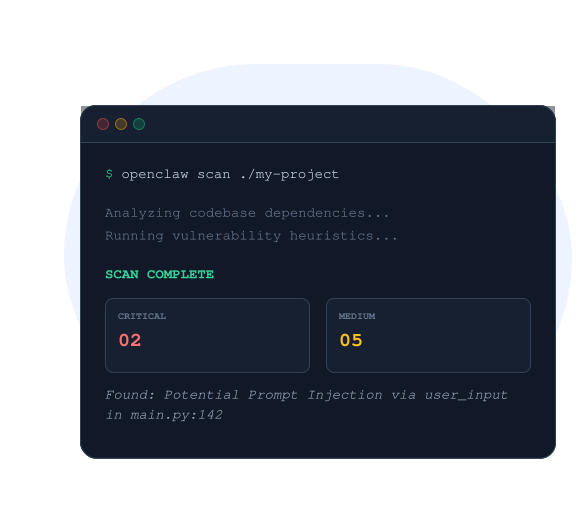
Start a new agent session and ask it to audit your setup. The assessment runs three phases and returns findings grouped by severity with recommended fixes.
What you’ll get back:
- Findings grouped by severity (Critical / High / Medium / Low)
- Each finding mapped to the specific part of your setup that’s affected
- Prioritized mitigation tasks so you know what to fix first
- Fixes you can apply directly in your OpenClaw host
> Audit my OpenClaw setup for security risks
Assessment skill. Full platform when you’re ready.
Active In The Security Community & Proud Members


Frequently asked questions
Is OpenClaw safe to run?
OpenClaw is powerful but carries real security risks if deployed without hardening. Common risks include secrets stored in plaintext in configuration files, overly permissive access policies, unsafe gateway exposure, and tool permissions that give agents far more power than intended. Running a security assessment on your environment identifies which of these risks are present in your specific setup and tells you exactly what to fix first.
What are the biggest security risks in an OpenClaw deployment?
The four most common risks are: (1) secrets stored in plaintext across configuration files and environment variables, (2) overly permissive access policies that give agents more filesystem and tool access than they need, (3) gateway configurations that expose agent endpoints beyond what’s intended, and (4) installed skills with tool permissions that give agents far more power than intended. Trent AI’s security assessment identifies each of these and maps them to the specific part of your setup that is affected.
What is an OpenClaw security assessment?
A security assessment for OpenClaw is a three-phase audit of your agent environment. It analyzes your configuration, uploads skill metadata for analysis, and runs a deep analysis to identify risks like plaintext secrets, overpermissive access, and unsafe gateway exposure. Findings are grouped by severity (Critical, High, Medium, and Low) with recommended fixes you can apply directly in your OpenClaw host.